How to play Spotify through your mic in Discord
Play Spotify to your friends in a Discord voice call, and keep talking over it. On Windows, AuxPipe mixes Spotify and your microphone into one microphone that Discord can use. Here is the setup, step by step.
Why Discord cannot do it alone
Discord sends one input device into the call: your microphone. Windows does not let an app create a second microphone, because only an audio driver can do that. AuxPipe puts its mix into a virtual audio cable, which is such a driver. Discord then uses the cable as its microphone.
What you need
- A PC with Windows 10 (version 2004 or later) or Windows 11, 64-bit
- AuxPipe from Steam. The free VB-CABLE driver comes with it.
- Spotify: the desktop app, or Spotify in a browser
Set it up
Install AuxPipe
Buy AuxPipe on Steam, and install it from your library like any other app.
Install the virtual cable
The first time AuxPipe opens, it looks for a virtual cable. If there is none, click Install VB-CABLE. Allow the installer, then click Install Driver.
AuxPipe finds the cable by itself. If it does not show up within a minute, restart your PC.
Do the first check
Next, AuxPipe checks that sound gets through. Say something, then play some music. Both meters should move. Then click All good.
Select Spotify
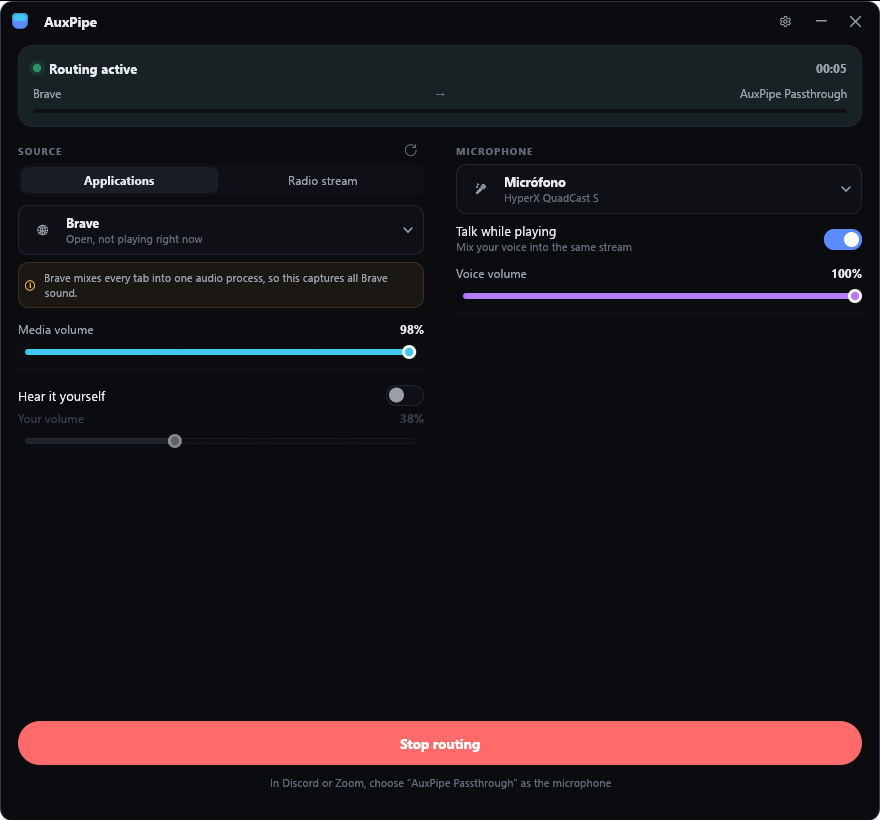
Play a song in Spotify. In AuxPipe, under Source, select Applications, then select Spotify in the list. Keep Talk while playing on, so that your voice goes out with the music. If AuxPipe does not show Routing active, click Start routing.
If you use Spotify in a browser, select the browser. AuxPipe then captures all the tabs of that browser, so mute the other tabs.
Set the microphone in Discord
In Discord, open User Settings, then Voice & Video. Set Input Device to “CABLE Output”. If you turned on “Show it as AuxPipe Passthrough” in AuxPipe’s settings, select “AuxPipe Passthrough”. AuxPipe shows the correct name under its Start routing button.
Set Noise Suppression to None, not Krisp, and turn off Echo Cancellation. Set Input Sensitivity by hand, with the slider fully to the left. If you do not, Discord removes the music.
Set the volumes
Media volume sets Spotify. Voice volume sets your microphone.
In AuxPipe’s settings, click the Discord preset. It starts from tested volumes and makes the music quieter while you speak.
If something does not work
My friends hear me, but the music cuts in and out.
Discord removes sounds that are not speech. Set Noise Suppression to None, not Krisp, and turn off Echo Cancellation. Set Input Sensitivity by hand, with the slider fully to the left.
My friends hear nothing.
Make sure that Discord’s Input Device is the cable, not your headset. Make sure that AuxPipe shows Routing active, and that Media volume is not at zero.
My friends hear their own voices.
AuxPipe is capturing the call. This happens when Discord runs in the same browser as the music. Use the Discord desktop app, or play Spotify in a different browser.
Spotify is not in the list.
AuxPipe lists the apps that are open. Play a song in Spotify, then click the refresh button next to Source.
Get AuxPipe
AuxPipe is on Steam, for Windows. VB-CABLE is included.